My Windows PowerShell Setup: Oh My Posh, Nerd Fonts and Autocomplete
8 min read PowerShell, Windows Terminal, Oh My Posh
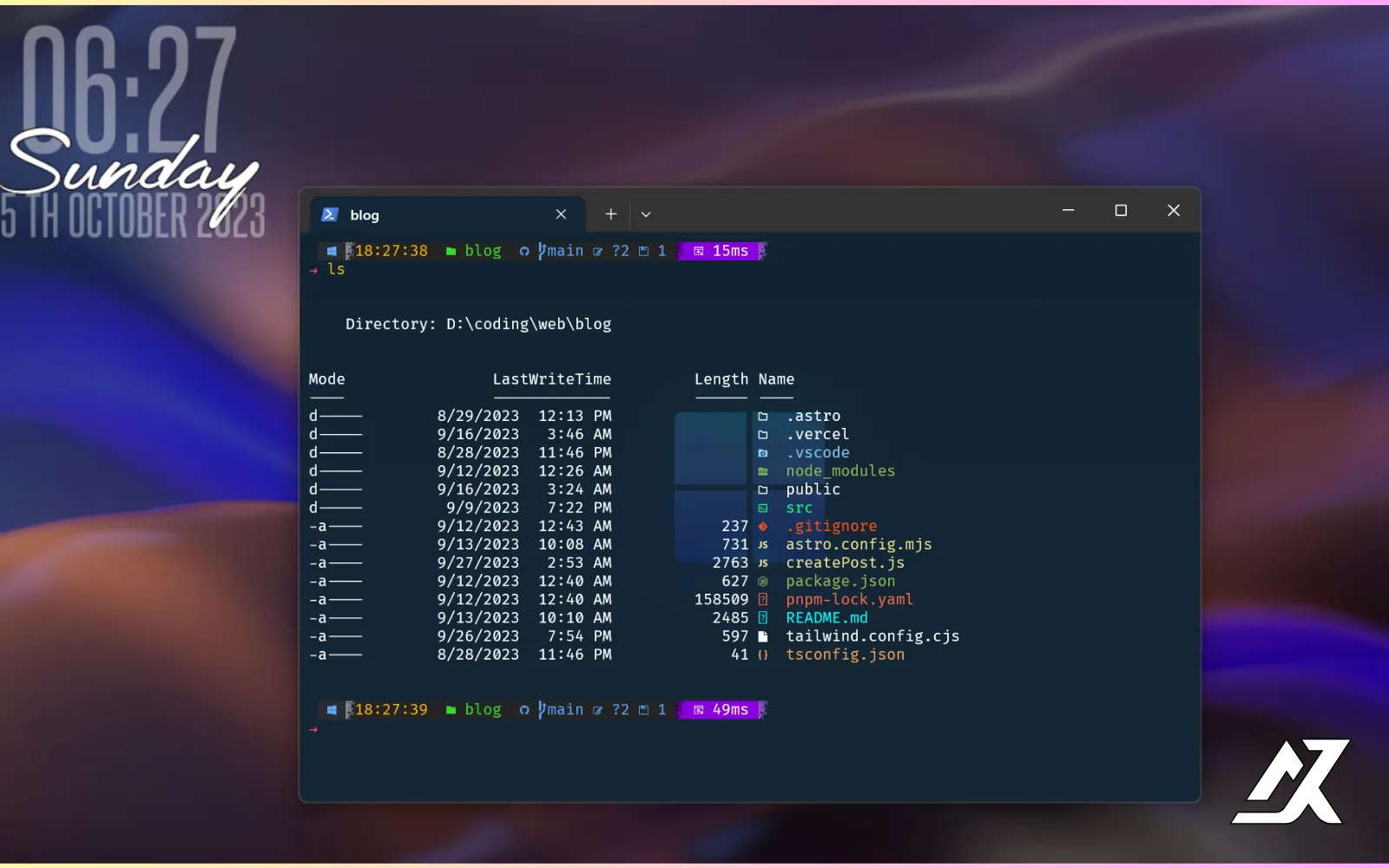
Hi 👋🏻! Today I’m going to walk through how I set up PowerShell on my Windows machine. As a developer, I think a nice-looking terminal with a few good tools genuinely makes you a little more productive. At the very least, it makes you want to open it.
By the end you’ll have:
- Windows Terminal as the default terminal, with a background and a bit of blur
- Scoop to install everything with one command
- A Nerd Font, so icons and glyphs actually render
- An Oh My Posh prompt that shows your folder, Git branch and status
- Terminal-Icons for file and folder icons in
ls - PSReadLine autocomplete from your history
- A few profile functions that save a lot of typing
The whole thing takes about 15 minutes.
Terminal application
There are many terminal apps for Windows, but my favourite is the one that already ships with it: Windows Terminal. It’s:
- visually appealing
- highly customizable
- tabbed, so you can have PowerShell, WSL and cmd side by side
If it’s not on your machine, install it from the Microsoft Store.
While you’re at it, consider installing PowerShell 7 (
winget install Microsoft.PowerShell). The blue “Windows PowerShell” that comes with Windows is 5.1 and hasn’t changed in years. Everything in this post works in both, but PowerShell 7 is faster and gets the newest PSReadLine features.
Making Windows Terminal the default and giving it a look
First, set Windows Terminal as your default terminal app. Open settings with Ctrl + ,. On the Startup page, set Default terminal application to Windows Terminal.
Now for the fun part. I’m all about that acrylic look.
Open Settings 👉 Profiles 👉 Defaults 👉 Appearance. This is where you tweak the theme to your style. I like to add a background image and turn on acrylic (the blur) for that extra flair. Keep the background dim, or dial the image opacity down, so text stays readable.
Installing Scoop
Scoop is a package manager for Windows, much like apt on Ubuntu or dnf on Fedora. One command installs, updates or removes an app. No installers, no clicking “Next” five times, and no fiddling with environment variables or PATH. It even makes installing fonts painless, which we’ll need in a minute.
Run these one at a time in PowerShell (not as administrator):
Set-ExecutionPolicy RemoteSigned -Scope CurrentUser
irm get.scoop.sh | iex
The first line allows locally created scripts (like your profile) to run for your user. Without it, PowerShell refuses to run the Scoop installer and, later, your profile. The second line downloads and runs the installer.
Installing a Nerd Font with Scoop
Before your prompt can show glyphs like the GitHub logo or folder icons, you need a Nerd Font. Regular fonts don’t include these characters, so you’d see empty boxes. Nerd Fonts are popular coding fonts patched with thousands of extra icons. You can browse them at nerdfonts.com.
My favourite is Cascadia Code, and this is where Scoop shines. Installing a font normally takes several steps. With Scoop it’s two commands:
- Add the Nerd Fonts bucket (a bucket is Scoop’s name for a collection of apps):
scoop bucket add nerd-fonts- Install the font:
scoop install Cascadia-CodeIf some icons still show up as empty boxes later, you probably have a version without the extra glyphs. Run
scoop search cascadiato see the Nerd Font variants and install one of those instead.
Changing your terminal font
- Open Windows Terminal settings.
- Go to Profiles 👉 Defaults 👉 Appearance.
- Under Font face, pick the Cascadia font you just installed.
Your terminal is now ready for a fancy prompt.
Customizing the prompt with Oh My Posh
Oh My Posh is my favourite tool for making the prompt look great. Beyond looks, a good prompt tells you where you are at a glance: current folder, Git branch, whether you have uncommitted changes, and how long the last command took.
Installing Oh My Posh
The main bucket is added by default when you install Scoop, but running this again doesn’t hurt:
scoop bucket add mainThen install it:
scoop install oh-my-poshSetting up your PowerShell profile

Your PowerShell profile is a script that runs every time PowerShell starts. It’s where all the customization lives: which prompt to load, which modules to import, your aliases and your own functions. Think of it as a power-up for PowerShell.
Open it in Notepad:
notepad $PROFILEIf you get an error saying the file doesn’t exist, create it first:
New-Item -Path $PROFILE -Type File -ForceThen run notepad $PROFILE again. If you’ve never touched it, it’ll be empty.
PowerShell 7 and Windows PowerShell 5.1 each have their own profile file. If you use both, you’ll need to set up each one.
$PROFILEalways points to the right one for the shell you’re in.
To make your prompt look like mine, add this line and save:
oh-my-posh init pwsh --config "C:\Users\anitj\scoop\apps\oh-my-posh\17.12.0\themes\craver.omp.json" | Invoke-ExpressionThat path includes the version number, so it breaks the next time Oh My Posh updates. A sturdier version uses the POSH_THEMES_PATH variable that the install sets up:
oh-my-posh init pwsh --config "$env:POSH_THEMES_PATH\craver.omp.json" | Invoke-ExpressionClose and reopen the terminal to reload the profile, and your prompt should look like mine.
craver is just the theme I like. Run Get-PoshThemes to preview all the built-in themes right in your terminal, then swap the file name. For more options, see the Oh My Posh customization docs.
Installing Terminal-Icons
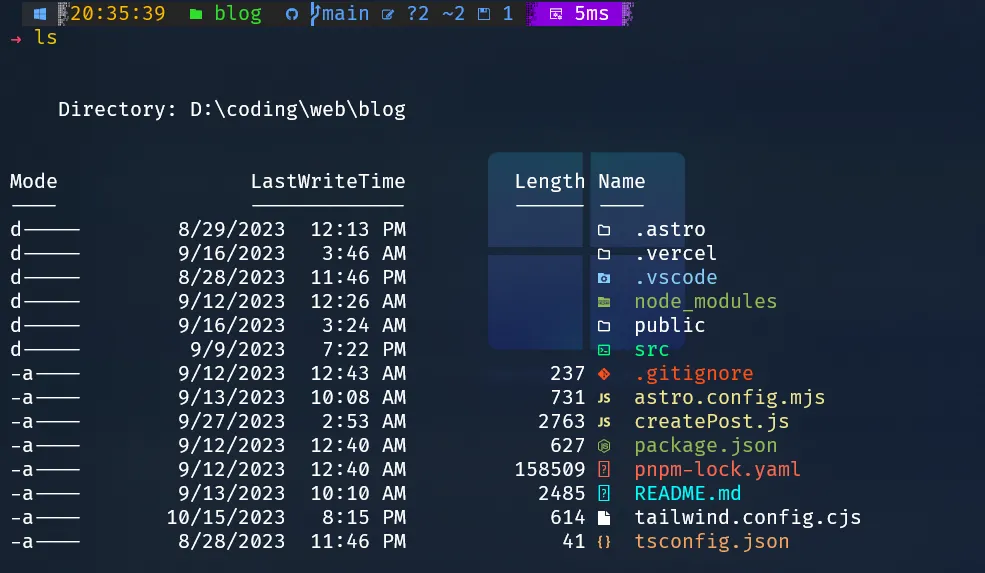
Terminal-Icons adds file and folder icons to ls and Get-ChildItem, colour-coded by file type. It sounds small, but it makes scanning a folder so much faster.
Install it:
Install-Module -Name Terminal-Icons -Repository PSGallery -Scope CurrentUserIf PowerShell asks whether you trust the PSGallery repository, say yes.
Then add this to your profile:
Import-Module -Name Terminal-IconsAutocomplete with PSReadLine

PSReadLine handles everything about typing on the PowerShell command line: syntax highlighting, tab completion, history search and, my favourite, predictions. As you type, it suggests the rest of the command from your history, like in the screenshot above.
PowerShell already comes with PSReadLine, but often an old version. Update it:
Install-Module -Name PSReadLine -Scope CurrentUser -ForceThen add this to your profile:
Import-Module -Name PSReadLine

# Suggest commands from history as you type (press → to accept)
Set-PSReadLineOption -PredictionSource History
# Show suggestions as a list you can arrow through (press F2 to toggle)
Set-PSReadLineOption -PredictionViewStyle ListView

# Tab shows a menu of completions instead of cycling through them
Set-PSReadLineKeyHandler -Key Tab -Function MenuComplete
# ↑ and ↓ search history for commands starting with what you've typed
Set-PSReadLineKeyHandler -Key UpArrow -Function HistorySearchBackward
Set-PSReadLineKeyHandler -Key DownArrow -Function HistorySearchForward
The
ListViewstyle needs PSReadLine 2.2 or newer. If you see an error about it, the update above didn’t take. RunGet-Module PSReadLineto check the version.
Reload your terminal by closing and reopening it.
Custom functions for a faster workflow
This is where the profile really pays off. You can add your own functions for things you type every day. These are the ones I use.
Git functions
1. gcom: stage and commit in one go
function gcom {
    git add .
    git commit -m "$args"
}
Run gcom "your commit message" and it stages everything and commits it with that message. No separate git add and git commit.
2. lazyg: stage, commit and push
For when you’re feeling extra lazy, lazyg does all three:
function lazyg {
    git add .
    git commit -m "$args"
    git push
}
Use it like lazyg "your commit message".
Both of these stage everything with
git add .. Keep an eye ongit statusso you don’t commit something you didn’t mean to.
Utility functions
3. which: find where a command comes from
Linux has which; PowerShell doesn’t. This gets you close:
function which($name) {
    Get-Command $name | Select-Object -ExpandProperty Definition
}
which git prints the full path to git.exe. For PowerShell functions, it prints the function’s code.
4. whichdir: find the folder a command lives in
function whichdir($name) {
    $directory = Split-Path -Parent (Get-Command $name | Select-Object -ExpandProperty Definition)
    return $directory
}
whichdir git gives you the folder that git.exe lives in. That’s handy when you’re chasing down which of two installs is on your PATH.
Aliases
Aliases are shorter names for commands you already have. For example:
Set-Alias -Name g -Value gitNow g status works like git status. Aliases can only point to a single command, so anything with arguments (like gcom above) needs to be a function.
My full profile
Here’s everything from this post in one place, ready to paste into notepad $PROFILE:
# Prompt
oh-my-posh init pwsh --config "$env:POSH_THEMES_PATH\craver.omp.json" | Invoke-Expression

# Modules
Import-Module -Name Terminal-Icons
Import-Module -Name PSReadLine

# PSReadLine
Set-PSReadLineOption -PredictionSource History
Set-PSReadLineOption -PredictionViewStyle ListView
Set-PSReadLineKeyHandler -Key Tab -Function MenuComplete
Set-PSReadLineKeyHandler -Key UpArrow -Function HistorySearchBackward
Set-PSReadLineKeyHandler -Key DownArrow -Function HistorySearchForward

# Aliases
Set-Alias -Name g -Value git

# Git
function gcom { git add .; git commit -m "$args" }
function lazyg { git add .; git commit -m "$args"; git push }

# Utilities
function which($name) { Get-Command $name | Select-Object -ExpandProperty Definition }
function whichdir($name) { Split-Path -Parent (Get-Command $name | Select-Object -ExpandProperty Definition) }
Troubleshooting
”Running scripts is disabled on this system.” Run the Set-ExecutionPolicy RemoteSigned -Scope CurrentUser line from the Scoop section.
Icons show up as empty boxes or question marks. Your terminal isn’t using a Nerd Font. Check Font face in the Windows Terminal settings.
PowerShell takes a while to start. Each module and the prompt add a little time. To see how long your profile takes, run Measure-Command { . $PROFILE }. If it’s slow, try a simpler Oh My Posh theme first.
The prompt looks right in one shell but not the other. PowerShell 7 and 5.1 have separate profiles, so set up both.
That’s my setup. Tweak it until it feels like yours. Your terminal is where you spend half your day, so it might as well be nice. ✨
Keep reading
All posts4 min read
How to Customize the GRUB Theme on Fedora
Change the GRUB2 boot menu theme on Fedora step by step: install a theme, edit /etc/default/grub, regenerate grub.cfg, and fix the usual problems.

5 min read
Git Stash: A Practical Beginner's Guide
A practical git stash guide with real examples: save work, switch branches, name and apply stashes, stash untracked files, fix conflicts and recover drops.